

Prerequisites
- A Slack workspace where you have permission to add apps or configure incoming webhooks.
- An Altostrat account with admin rights to set up integrations.
Setting up the Slack Webhook

Configure Incoming Webhooks
Click on the channel name → Integrations (or use Slack’s Apps directory).
Search for Incoming Webhooks and click Add.Proceed to follow the in screen prompts to add the App.


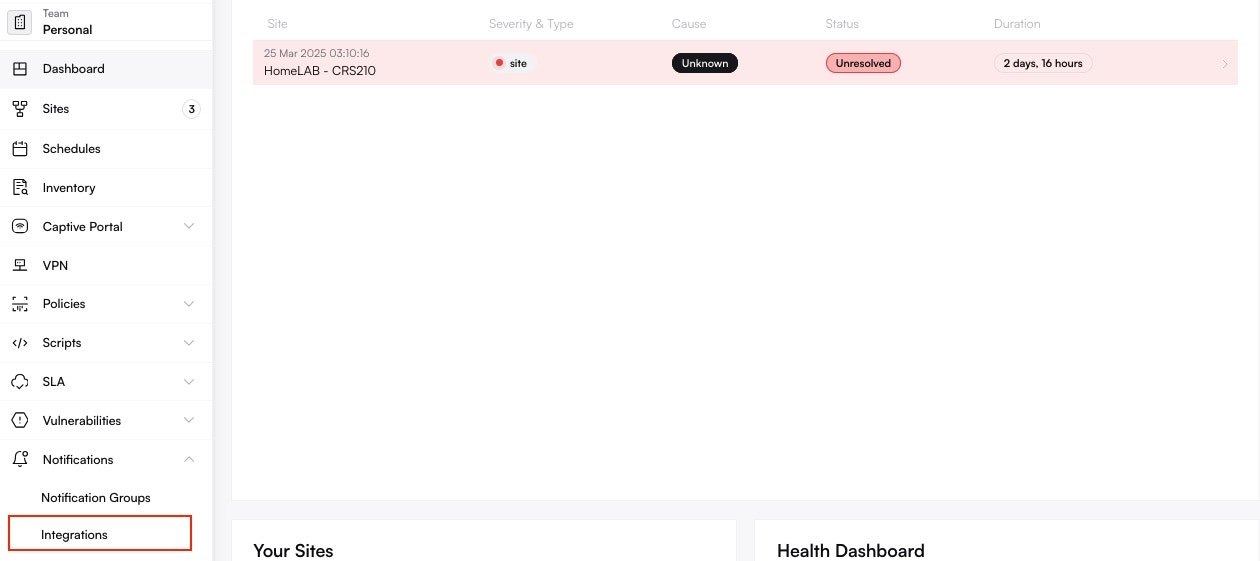
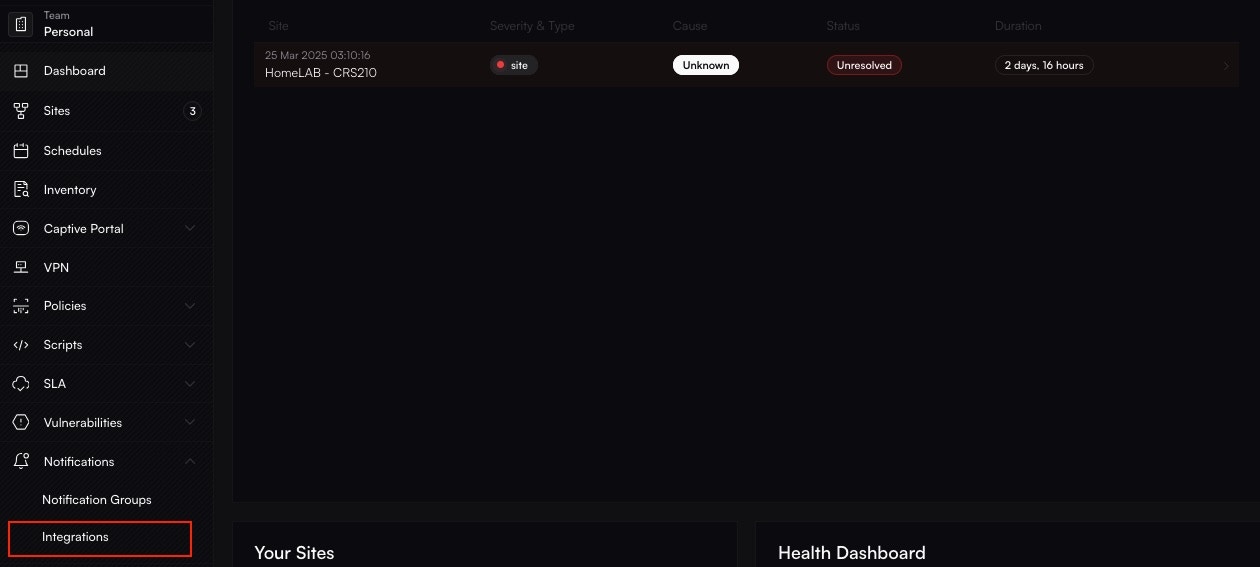
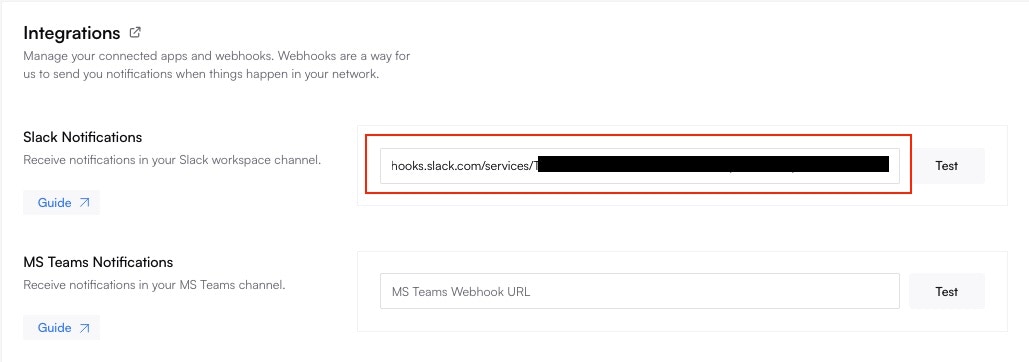
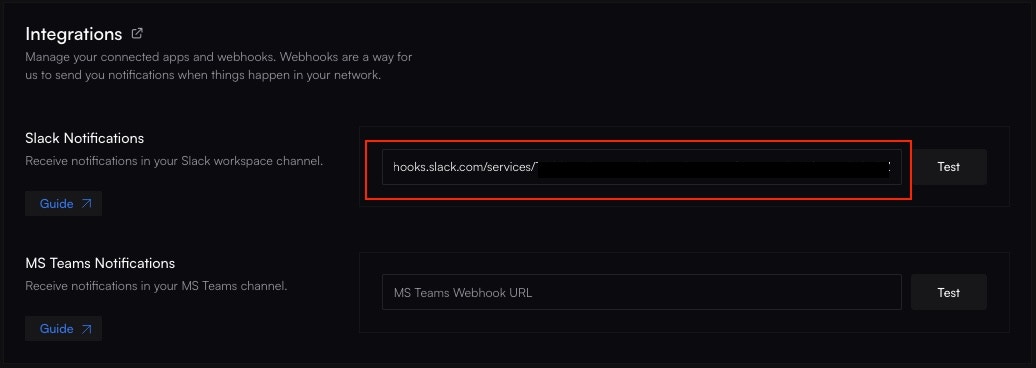
Integrating with Altostrat
If the test message doesn’t show up, confirm your webhook URL is correct and that Slack’s Incoming Webhook integration is active.
Troubleshooting
- No Slack Notifications Make sure the Slack channel allows external webhooks and that the pasted URL is correct.
- Rate Limits Slack might throttle excessive messages. If you see warnings, reduce the alert frequency or batch notifications.
- Check Orchestration Log See the Orchestration Log for any errors if Altostrat says notifications were sent but Slack never receives them.
Updating or Removing the Integration
- Slack Under Apps in Slack, remove or reconfigure the webhook if you need a new channel or changed credentials.
- Altostrat In Integrations, remove or edit the Slack entry to stop or reroute notifications.