

Prerequisites
- A Microsoft Teams workspace with permissions to manage connectors or install apps.
- An Altostrat account with enough privileges to set up integrations.
Setting up the Microsoft Teams Webhook
Open Microsoft Teams
Launch Microsoft Teams and choose the channel you’d like to use for Altostrat notifications.
Manage Channel Connectors
Right-click the channel name and select Manage channel or go to Connectors in the channel settings.


Integrate the Webhook with Altostrat
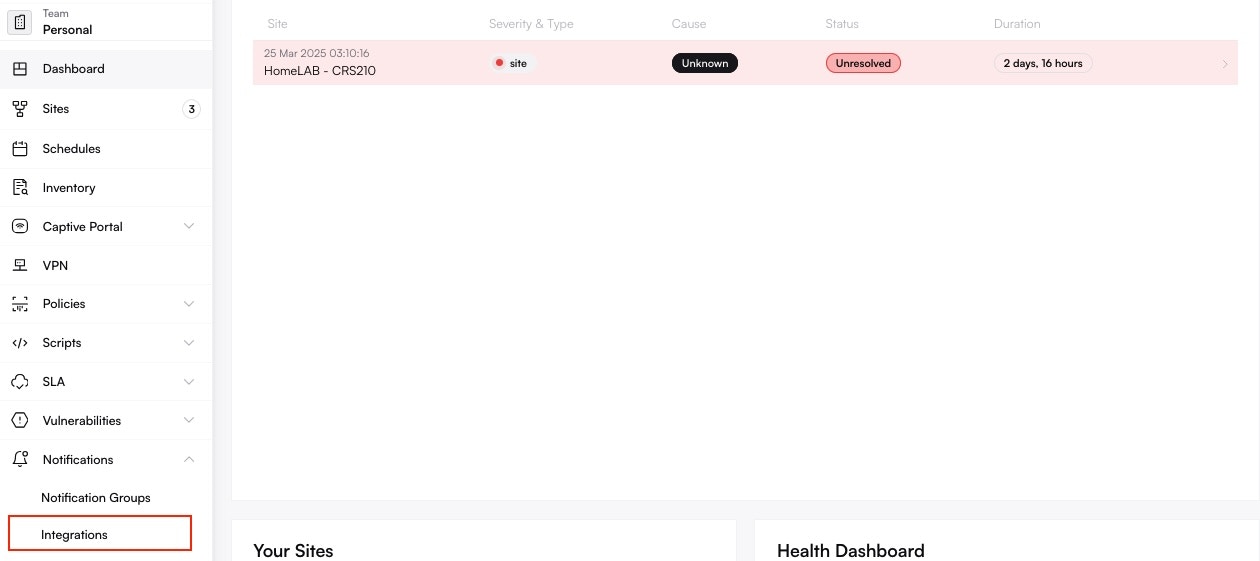
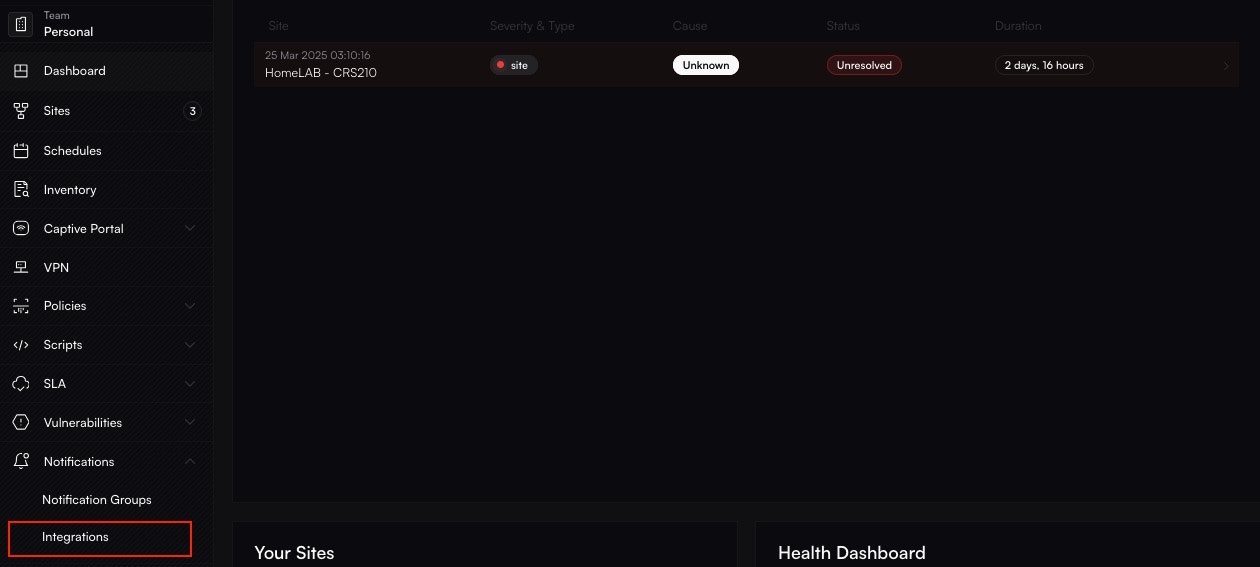
Select Microsoft Teams
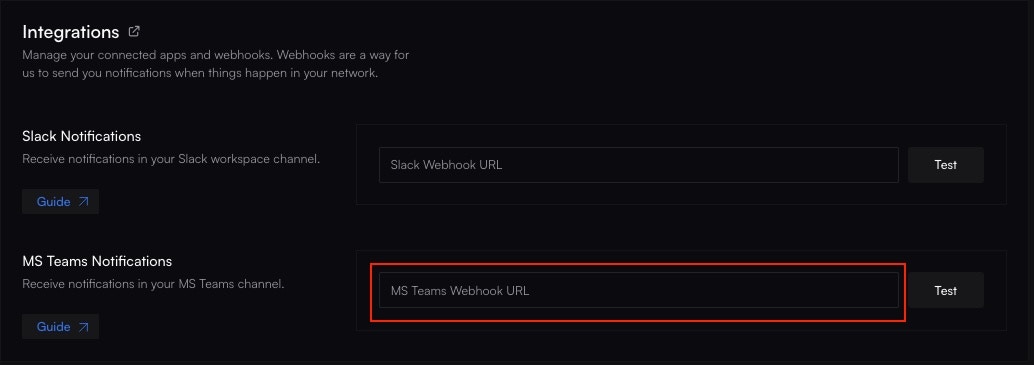
Find the Teams integration and enter the webhook URL you copied from Microsoft Teams.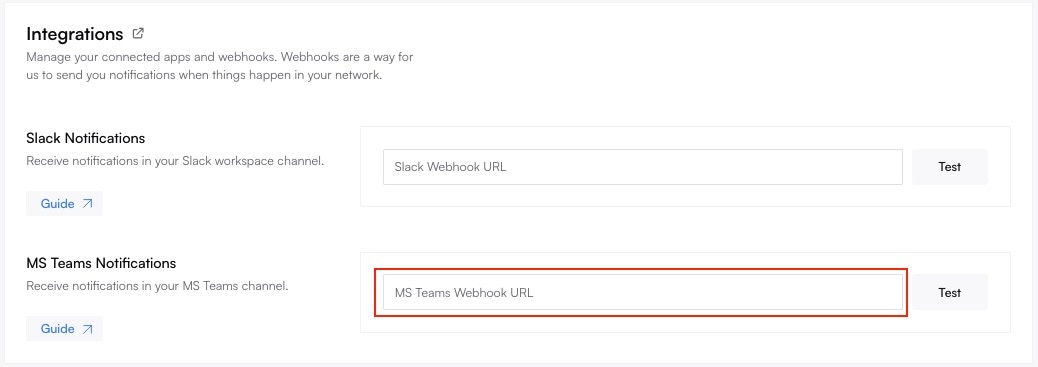
Troubleshooting
- No Message in Teams Double-check the webhook URL and verify external connector settings.
- Rate Limits Microsoft Teams may have rate limits for messages. Slow down or batch notifications if you encounter errors.
- Orchestration Logs If alerts are shown as sent in Altostrat but don’t appear in Teams, consult the Orchestration Log for details on message delivery attempts.
Removing or Updating the Integration
- Microsoft Teams Channel Remove or reconfigure the Incoming Webhook in the channel’s connector settings.
- Altostrat In the Integrations tab, remove or edit the Microsoft Teams entry.